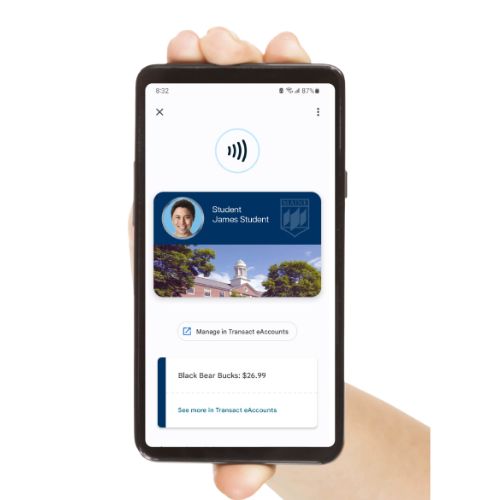
Set up Your Mobile Mainecard on Your Phone
The Mobile MaineCard is your official University of Maine ID. It lives in your phone’s digital wallet, such as Apple Wallet, Google Wallet, or Samsung Wallet.
Important: Set up your Mobile MaineCard before you arrive on campus!
Chat with our MaineCard AI Assistant to walk through the steps to set up your Mobile MaineCard.
Before you Begin
Make sure you have completed the following before attempting to set up your Mobile MaineCard:
steps for your mobile mainecard self-setup
1. Enroll in Multi-Factor Authentication (MFA)
With your phone, navigate to MFA Manager. Sign in and click the green “Enroll Smart Device”, then follow the prompts to enroll.
If you get a message saying you are ineligible, please contact IT Support.

2. Download the Duo Mobile app when the MFA Manager asks you to.
Duo Mobile is the multi-factor authentication app that you will use to secure your UMS accounts.

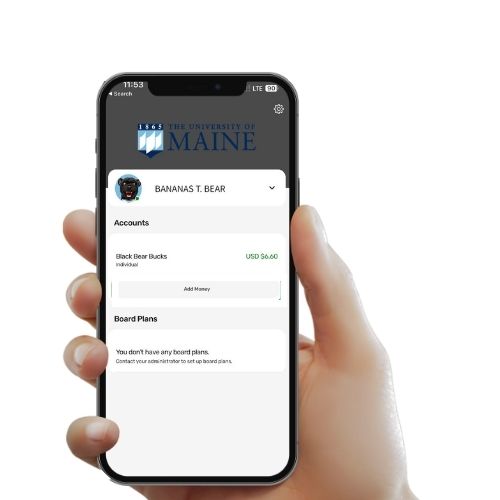
3. Download the Transact eAccounts app.
Transact eAccounts is the app where you will download your Mobile MaineCard. Select the appropriate app for your device below:

4. Register with Transact eAccounts
Once Transact eAccounts is installed, register in the app.
Organization = University of Maine System Portal = UM
Then sign in with your UMS credentials.
5. Add your Mobile Mainecard to your wallet
Once signed in, tap the button that says “Add to Wallet“.
Receiving an error message? View our most common Mobile MaineCard issues and resolutions:
6. Your Mobile Mainecard is ready to use!
Once added, you are ready to use your Mobile MaineCard to access your room, purchase food, attend athletic events, borrow library materials, and so much more!